How to Track UTM Parameters in Calendly
See which campaign sent each Calendly booking. Add one script tag to the page with your embed, then test with a UTM link.
- Author
- SourceTrack Team
- Category
- Track UTM Parameters
- Read Time
- 05 Mins read
- Published Date
Inside the page
- How Calendly handles UTM parameters on its own
- What SourceTrack records for each Calendly booking
- Step 1: Add the script tag
- Step 2: Embed Calendly on your page
- Step 3: Book a test meeting from a UTM link
- Step 4: Look at the booking in SourceTrack
- What you will see
- Common problems and fixes
- Further reading
- Frequently asked questions
- Do I need to change anything in Calendly?
- What if I only link to my Calendly page?
- What if a visitor comes without a UTM link?
- Does Calendly pass UTM parameters on its own?
- Why is my Calendly booking missing from SourceTrack?
- Next step
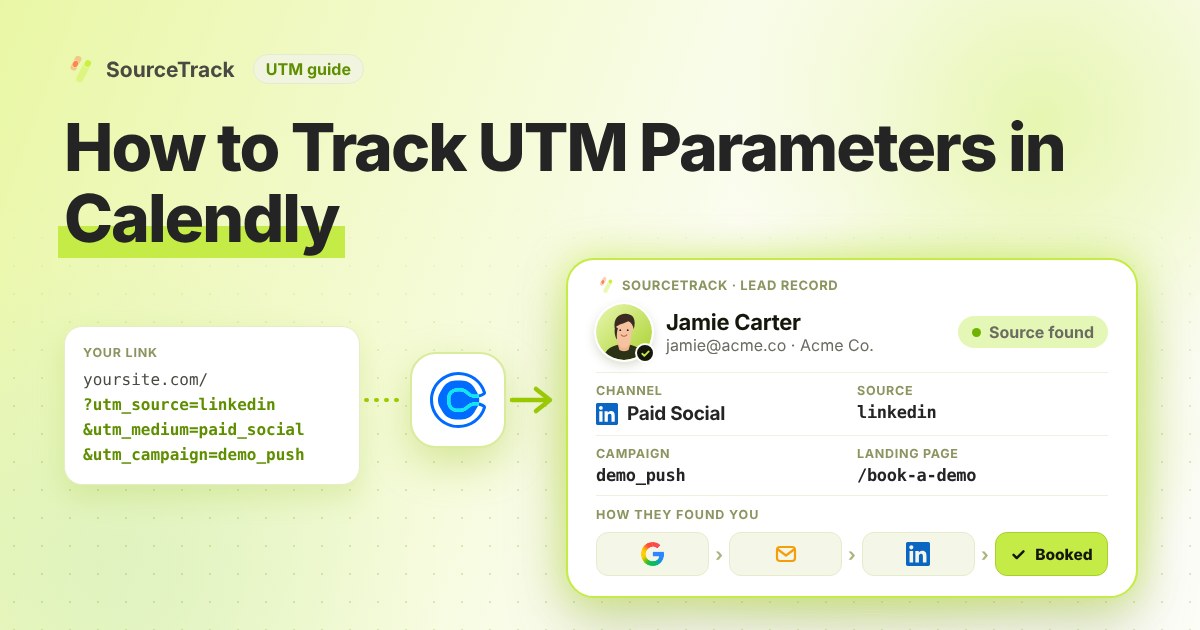
Someone books a call with you on Calendly. Which ad, email or post sent them? This guide shows how to find out. Embed Calendly on your site, add one script tag, and SourceTrack records each confirmed booking with its source.
How Calendly handles UTM parameters on its own
Calendly has built-in UTM support, and it helps to know what it covers before you add anything. According to Calendly’s help center, it supports the five standard UTM parameters: utm_source, utm_medium, utm_campaign, utm_content and utm_term. It also accepts a salesforce_uuid value. Custom parameters are not supported. Each value should stay under 255 characters, and longer values are not tracked.
The values do not arrive on their own. Calendly describes several ways to hand them to the embed. You can add them to the URL in the embed’s data-url attribute, pass a utm object in the advanced JavaScript embed, or use a small script that reads the UTM values from your page address and passes them to the widget, so one embed can serve many campaigns. Calendly also notes that values set in the JavaScript object replace any UTM values already in the page URL, and that the URL needs a ? before the first parameter and & between the rest.
Once the values are in, Calendly says you can select a meeting on your calendar page to see them, that webhook payloads include the UTM data, and that the v2 API exposes it in the invitee data. Its help page does not describe UTM data in other integrations, so check the vendor documentation if you rely on one.
For a single campaign that may be enough. For lead-source reporting it falls short in a few ways:
- Someone has to pass the values into the embed. If the embed code carries no UTM values, the meeting has none.
- Calendly sees only what you give it. It does not know that a visitor first arrived from a search engine, read three pages and came back later through an email.
- The result lives inside Calendly. You see UTM values on a meeting, but not next to the rest of the visitor’s journey on your site.
What SourceTrack records for each Calendly booking
SourceTrack works from your own website rather than from Calendly’s settings. When Calendly is embedded on a page that carries your SourceTrack script, SourceTrack confirms the booking and records it with the visitor’s source, medium and campaign. It links the attendee’s name and email to the visitor’s earlier browsing, records the meeting type name, and places the booking in the visitor’s journey, including the pages they viewed before they booked.
Because the script reads the UTM tags from the page the visitor landed on, you do not have to build UTM values into the embed code. The campaign details stay at the website level and are attached to the booking when it is confirmed.
Only the embedded calendar is confirmed this way. A plain link to your Calendly page sends the visitor off your site, so SourceTrack cannot see the booking happen.
Step 1: Add the script tag
Copy your one script tag from SourceTrack. Paste it into the head of your website, once. The install guide shows where it goes. On WordPress, see the WordPress guide.
Step 2: Embed Calendly on your page
Put your Calendly booking calendar on a page of your site with the Calendly embed. SourceTrack confirms a booking when Calendly is embedded on your page. Nothing needs to change inside Calendly.
Step 3: Book a test meeting from a UTM link
Open the page with the calendar using a link like this:
https://yourwebsite.com/book?utm_source=test&utm_medium=email&utm_campaign=form_test
Open it in a new private window. If your browser sends Do Not Track or Global Privacy Control, SourceTrack respects that and will not track the visit. Then book a test meeting.
Step 4: Look at the booking in SourceTrack
Open SourceTrack and find the new booking. Check that the source, medium and campaign match your test link.
What you will see
SourceTrack records a confirmed booking for your test. It shows the source test, the medium email and the campaign form_test from your link.
Common problems and fixes
Nothing shows up after the test. First rule out a privacy signal. SourceTrack honours Do Not Track and Global Privacy Control, and some browsers and extensions send them by default. If yours does, the visit is not tracked, which is the intended behaviour. Test in a browser profile without those signals.
The script is not on the right page. The script tag must load on the same page as the Calendly embed, and it belongs in the head. If you pasted it on a different page, or a page builder moved it, the booking has nothing to attach to. View the page source and look for it.
The calendar sits inside a popup or another frame. Calendly’s inline, popup text and popup widget embeds are all placed from your page, which is what SourceTrack needs. If your builder loads the whole page inside another iframe, make sure the script runs in the page that holds the embed, then test again.
For more checks, see the troubleshooting guide and the install guide. The basics of UTM parameters explains how to tag links well, and the integrations page lists how each tool connects.
Further reading
- Calendly Help: How to track conversions with UTM parameters: the UTM values Calendly supports and the 255-character limit.
- Calendly Help: How to source track your Calendly embed with UTM parameters: UTM tracking for an embedded scheduling page.
- Google Analytics Help: URL builders, collect campaign data with custom URLs: how UTM parameters are added to destination URLs so Analytics can attribute traffic to campaigns.
- UTM best practices: naming rules that keep campaign tags consistent.
Frequently asked questions
Do I need to change anything in Calendly?
No. You do not add hidden fields or change your Calendly settings. The script tag goes on your own site, on the page with the embed.
What if I only link to my Calendly page?
Then your campaign details travel to Calendly, but SourceTrack does not confirm the booking itself. Embed Calendly on your own page to get confirmed bookings.
What if a visitor comes without a UTM link?
SourceTrack still looks at where they came from, such as a search engine or another website. If the link has no tags and the visit has no referring site, it shows as Direct. So tag the links you control, like emails, ads and social posts.
Does Calendly pass UTM parameters on its own?
Partly. Calendly accepts the five standard UTM fields and shows them on the meeting, in webhooks and in its API, but only when the values are passed into the embed. It does not show how the visitor reached your site before booking.
Why is my Calendly booking missing from SourceTrack?
The usual causes are Do Not Track or Global Privacy Control in the visitor’s browser, a script that is not on the page with the embed, or a Calendly page that is only linked and not embedded.
Next step
Tag the links you share and watch the bookings come in. Learn the basics in how to track UTM parameters, check the install guide if a test booking does not appear, or see how every tool connects.
Related Blogs
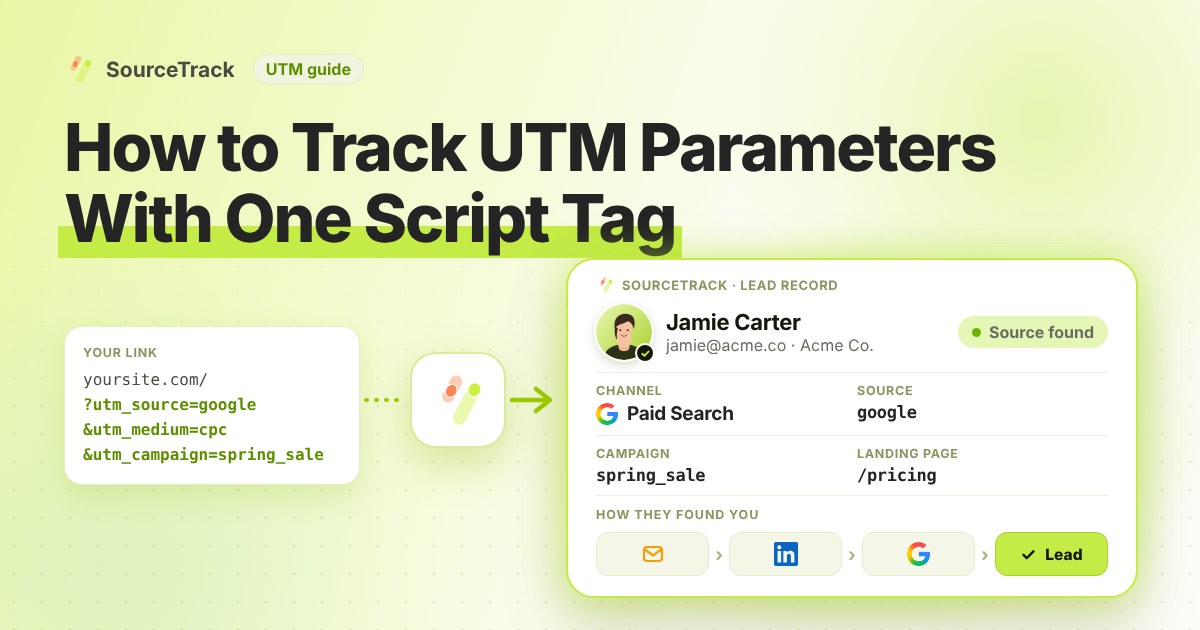
How to Track UTM Parameters: The Basics
Learn what UTM parameters are, how to build tagged links, and how to see which campaign sent each lead. Plain steps, no code.
SourceTrack Team
Attribution & Growth Engineering
20 Oct, 2026
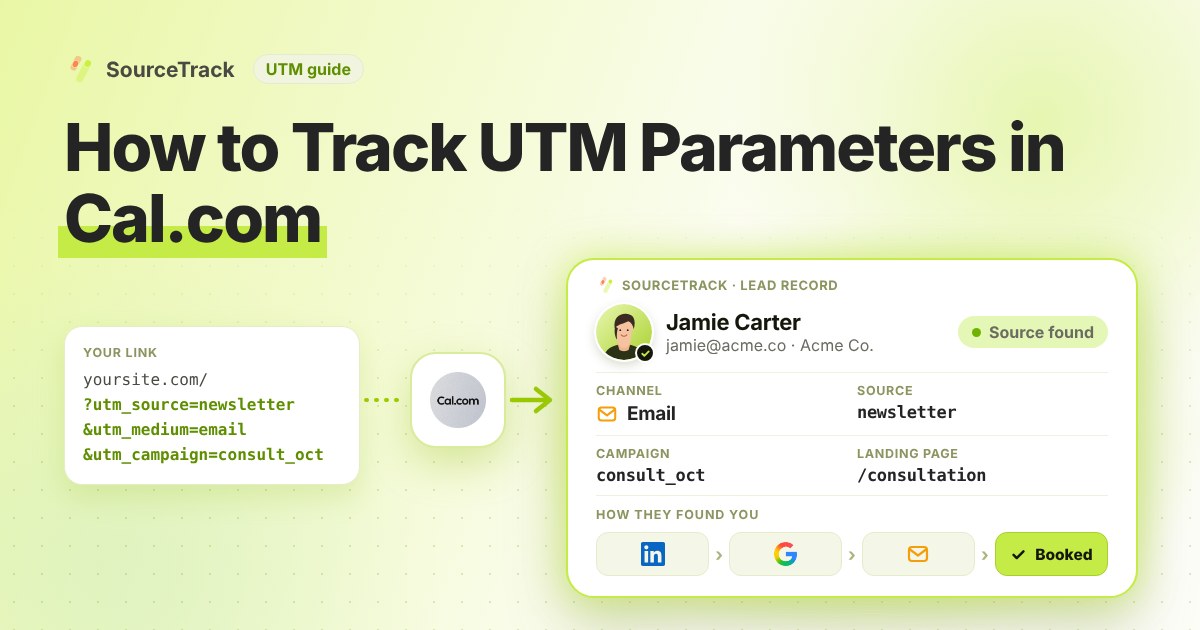
How to Track UTM Parameters in Cal.com
See which campaign sent each Cal.com booking. Add one script tag to the page with your embed, then test with a UTM link.
SourceTrack Team
Attribution & Growth Engineering
20 Oct, 2026
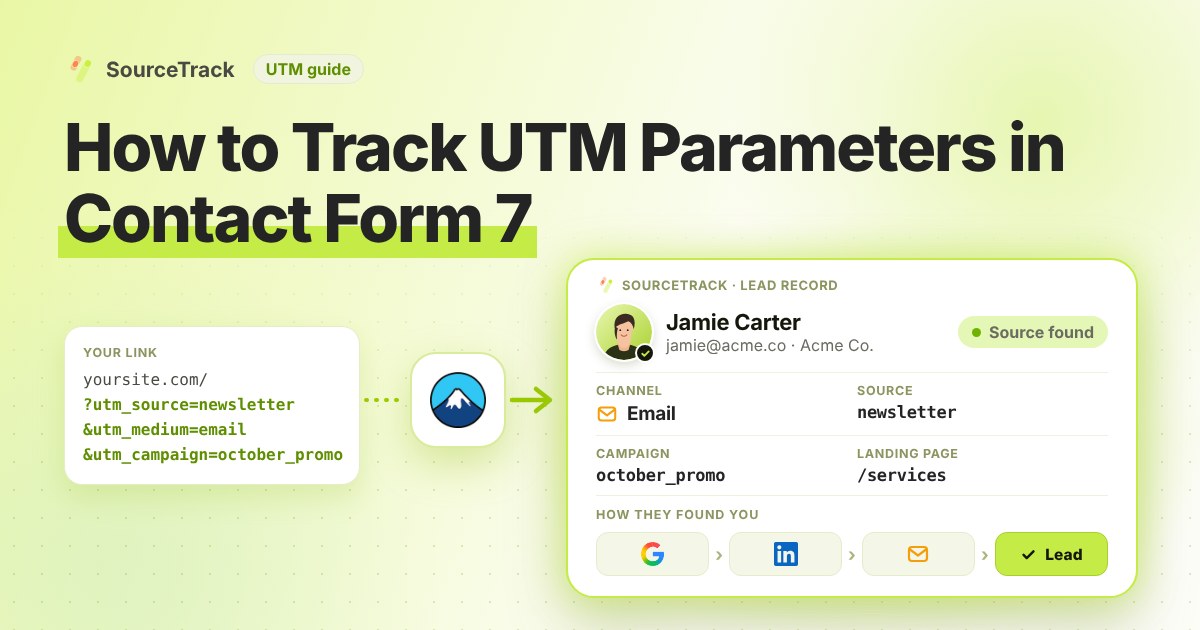
How to Track UTM Parameters in Contact Form 7
See which campaign sent each Contact Form 7 lead. Add one script tag, no hidden fields, then test with a UTM link.
SourceTrack Team
Attribution & Growth Engineering
20 Oct, 2026