How to Track UTM Parameters in Crisp
See which campaign sent each Crisp chat lead. Add one script tag, then test with a UTM link.
- Author
- SourceTrack Team
- Category
- Track UTM Parameters
- Read Time
- 04 Mins read
- Published Date
Inside the page
- How Crisp handles UTM parameters on its own
- What SourceTrack records for each Crisp chat
- Step 1: Add the script tag
- Step 2: Keep Crisp on the same page
- Step 3: Open a test link and start a chat
- Step 4: Look at the chat lead in SourceTrack
- What you will see
- Common problems and fixes
- Good to know
- Further reading
- Frequently asked questions
- Do I need to change anything in Crisp?
- Does SourceTrack read the chat?
- What if a visitor comes without a UTM link?
- Does Crisp track UTM parameters on its own?
- Why is my Crisp chat lead missing from SourceTrack?
- Next step
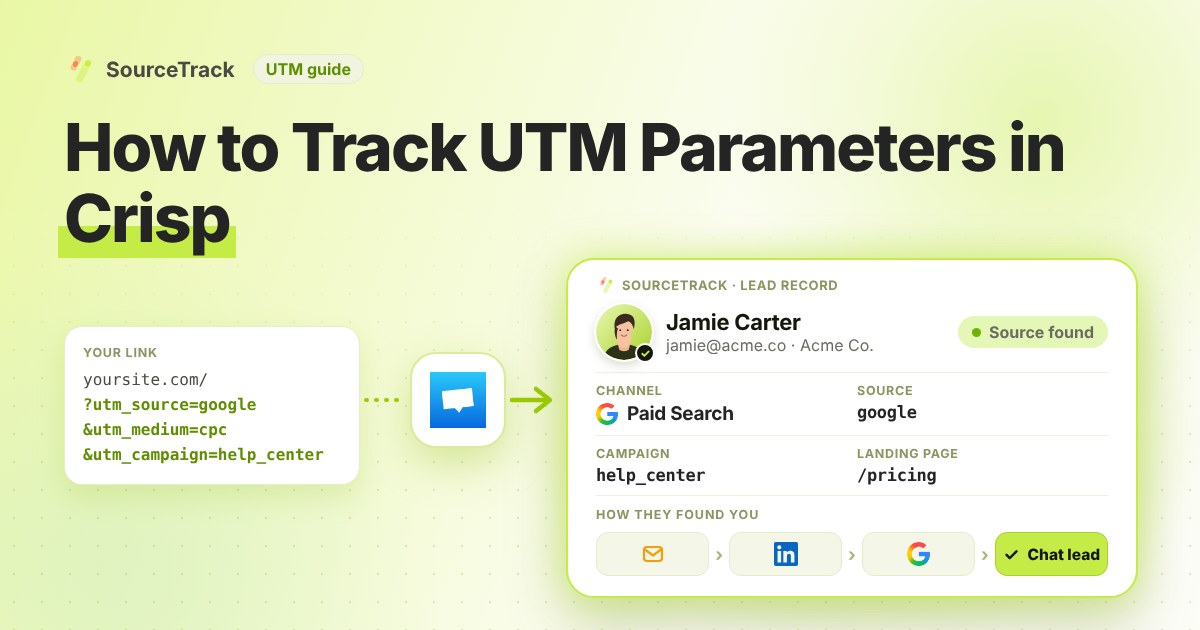
A visitor chats with you on Crisp and leaves their email. Which campaign sent them? This guide shows how to see it. Add one script tag, and SourceTrack records a chat lead when a visitor gives their email in the chat.
How Crisp handles UTM parameters on its own
Crisp does not capture UTM parameters for you. Its own help center article on tracking the UTM source describes a do-it-yourself route: with a small JavaScript snippet you read the UTM values from the page URL and attach them to the Crisp customer profile. The snippet looks for utm_source, utm_medium, utm_campaign, utm_term and utm_content and saves any that exist with the session:data method of $crisp. You then review them in the customer profile or session data area of a conversation.
Crisp’s developer documentation confirms the building block: session:data sets session data for a key, and the value must be a string, boolean or number. The Web SDK also has a user:email setting for a visitor’s email.
This is useful for support staff, who can see the campaign while they chat. It falls short for lead-source reporting:
- It is code you have to add and maintain on every page where visitors may land.
- The values are stored as session data. Crisp’s own article says that if you want first-touch attribution you must store the first values on your side before sending them again later.
- The data sits in the chat tool. It is not joined to the visitor’s pageviews, their other forms or their later conversions.
- It records nothing for a visitor who arrives without tags.
What SourceTrack records for each Crisp chat
SourceTrack runs on your website and needs no code inside Crisp. When Crisp and the SourceTrack script run on the same page, SourceTrack notices when a visitor opens or starts the chat and gives an email address, and records a chat lead for that visit. It ties the lead to the visitor’s source, the UTM tags on their link, the referring site and the pages they viewed, so you can open the visit and see where it came from.
A chat lead is recorded as a chat-lead event on the visitor’s journey. It is not a counted conversion. SourceTrack does not read what was said in the chat, and it does not read the email address from the conversation. It only notes that a visitor left one.
Step 1: Add the script tag
Copy your one script tag from SourceTrack. Paste it into the head of your website, once. The install guide shows where it goes. On WordPress, see the WordPress guide.
Step 2: Keep Crisp on the same page
Make sure Crisp runs on the pages where the SourceTrack script runs. Nothing needs to change inside Crisp.
Step 3: Open a test link and start a chat
Open your site with a link like this:
https://yourwebsite.com/?utm_source=test&utm_medium=email&utm_campaign=form_test
Open it in a new private window. If your browser sends Do Not Track or Global Privacy Control, SourceTrack respects that and will not track the visit. Open the chat, start a conversation and give an email address. The email must come after the visitor has opened or started the chat on that page.
Step 4: Look at the chat lead in SourceTrack
Open SourceTrack and find the new chat lead. Open that visit to see where it came from.
What you will see
SourceTrack shows a chat lead for your test visit. It is recorded as a chat-lead event, not as a counted conversion.
Common problems and fixes
No chat lead appears. Check the order first. SourceTrack records the lead only after the visitor has opened or started the chat on that page, so an email entered before that is not picked up. Open the chat, start a conversation, then give the email.
A privacy signal is on. SourceTrack honours Do Not Track and Global Privacy Control, and some browsers and extensions send them by default. The visit is then not tracked, on purpose. Test in a profile without them.
Crisp and the script are on different pages. Both must run on the same page. If Crisp loads on the booking or help site and the SourceTrack script does not, nothing connects. Check the page source for both.
Crisp is in a popup or another frame. If the chat sits in an iframe or a separately hosted page, the script must run in the page where the chat is opened.
The script is not in the head. Put it in the head once, as the install guide shows.
The private window test is odd. Some private windows block scripts. Repeat in a regular window.
For more checks, see the troubleshooting guide and the install guide. The basics of UTM parameters explains how to tag links well, and the integrations page shows how each tool connects.
Good to know
SourceTrack records the lead only after the visitor has opened or started the chat on that page. A chat lead is recorded as a chat-lead event. It is not a counted conversion.
Further reading
- Crisp Knowledge Base: How to track UTM sources with the Crisp chatbox: a script that saves UTM values to the Crisp session.
- Google Analytics Help: URL builders, collect campaign data with custom URLs: how UTM parameters are added to destination URLs so Analytics can attribute traffic to campaigns.
Frequently asked questions
Do I need to change anything in Crisp?
No. You do not add hidden fields or change your Crisp settings.
Does SourceTrack read the chat?
No. SourceTrack never reads the email address or what was said in the chat. It only notes that a visitor left an email.
What if a visitor comes without a UTM link?
SourceTrack still looks at where they came from, such as a search engine or another website. If the link has no tags and the visit has no referring site, it shows as Direct. So tag the links you control, like emails, ads and social posts.
Does Crisp track UTM parameters on its own?
No. Crisp’s help center describes a small script that reads the UTM values from the page URL and saves them as session data in Crisp. It does not do this by itself.
Why is my Crisp chat lead missing from SourceTrack?
The usual causes are Do Not Track or Global Privacy Control in the visitor’s browser, Crisp and the script running on different pages, or an email given before the chat was opened or started.
Next step
Tag the links you share and watch the chat leads come in. Learn the basics in how to track UTM parameters, check the install guide if a test chat does not appear, or see how every tool connects.
Related Blogs
How to Track UTM Parameters: The Basics
Learn what UTM parameters are, how to build tagged links, and how to see which campaign sent each lead. Plain steps, no code.
SourceTrack Team
Attribution & Growth Engineering
20 Oct, 2026
How to Track UTM Parameters in Cal.com
See which campaign sent each Cal.com booking. Add one script tag to the page with your embed, then test with a UTM link.
SourceTrack Team
Attribution & Growth Engineering
20 Oct, 2026
How to Track UTM Parameters in Calendly
See which campaign sent each Calendly booking. Add one script tag to the page with your embed, then test with a UTM link.
SourceTrack Team
Attribution & Growth Engineering
20 Oct, 2026