How to Track UTM Parameters in Intercom
See which campaign sent each Intercom chat lead. Add one script tag, then test with a UTM link.
- Author
- SourceTrack Team
- Category
- Track UTM Parameters
- Read Time
- 04 Mins read
- Published Date
Inside the page
- How Intercom handles UTM parameters on its own
- What SourceTrack records for each Intercom chat
- Step 1: Add the script tag
- Step 2: Keep Intercom on the same page
- Step 3: Open a test link and start a chat
- Step 4: Look at the chat lead in SourceTrack
- What you will see
- Common problems and fixes
- Good to know
- Further reading
- Frequently asked questions
- Do I need to change anything in Intercom?
- Does SourceTrack read the chat?
- What if a visitor comes without a UTM link?
- Does Intercom track UTM parameters on its own?
- Why is my Intercom chat lead missing from SourceTrack?
- Next step
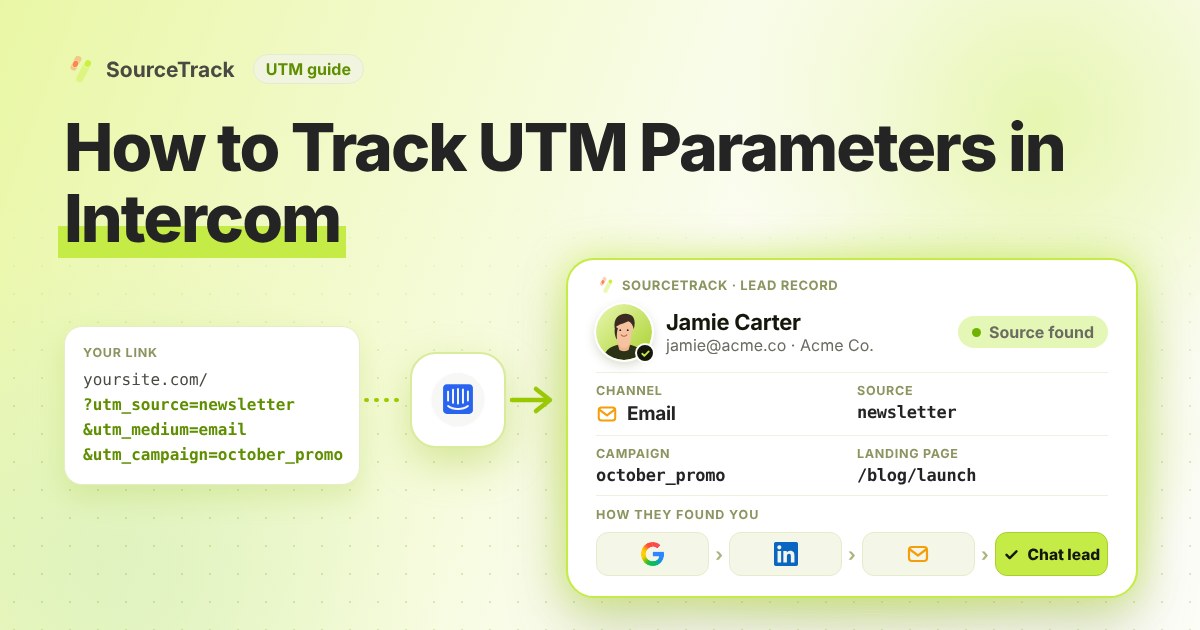
A visitor chats with you on Intercom and leaves their email. Which campaign sent them? This guide shows how to see it. Add one script tag, and SourceTrack records a chat lead each time a visitor gives their email in the Messenger.
How Intercom handles UTM parameters on its own
Intercom does track UTM parameters natively. Its help article on tracking conversions and clicks with UTM parameters says Intercom automatically tracks the five standard ones: utm_campaign, utm_source, utm_medium, utm_term and utm_content. The landing URL must have the Intercom Messenger installed, because the Messenger ping is what updates the contact’s UTM values.
The same article states the limit that matters for reporting: Intercom only stores a lead or user’s most recent UTM data. If a contact engages with more than one campaign, Intercom shows only the latest, although earlier UTM data is kept.
Intercom also has custom data attributes, described in its help center. You create them in Settings, under Data and People, and pass values from your page as top-level keys in window.intercomSettings. The article warns that a nested custom_attributes object is silently dropped, and that attributes must exist in Intercom before anything can update them. Intercom’s pages did not describe a UTM-specific setting for this, so check the vendor documentation before building on it.
For lead-source reporting this leaves gaps:
- It is last-touch only. The campaign that first brought someone in is replaced when a newer one arrives.
- It depends on the Messenger being on the landing page.
- The data sits on the Intercom contact, away from the pageviews and journey on your site.
- A visitor without tags and without a referrer has no campaign to show.
What SourceTrack records for each Intercom chat
SourceTrack runs on your website and needs no change inside Intercom. When the Messenger and the SourceTrack script run on the same page, SourceTrack notices when a visitor opens the Messenger, starts a conversation or leaves an email, and records a chat lead for that visit. It connects the lead to the visitor’s source, the UTM tags on their link, the referring site and the pages they viewed before opening the chat.
A chat lead is recorded as a chat-lead event on the visitor’s journey. It is not a counted conversion. SourceTrack does not read what was said in the chat or the email address in the conversation. It only notes that a visitor left one.
Step 1: Add the script tag
Copy your one script tag from SourceTrack. Paste it into the head of your website, once. The install guide shows where it goes. On WordPress, see the WordPress guide.
Step 2: Keep Intercom on the same page
Make sure Intercom runs on the pages where the SourceTrack script runs. Nothing needs to change inside Intercom.
Step 3: Open a test link and start a chat
Open your site with a link like this:
https://yourwebsite.com/?utm_source=test&utm_medium=email&utm_campaign=form_test
Open it in a new private window. If your browser sends Do Not Track or Global Privacy Control, SourceTrack respects that and will not track the visit. Open the Messenger, start a chat and give an email address.
Step 4: Look at the chat lead in SourceTrack
Open SourceTrack and find the new chat lead. Open that visit to see where it came from.
What you will see
SourceTrack shows a chat lead for your test visit. It is recorded as a chat-lead event, not as a counted conversion.
Common problems and fixes
No chat lead appears. Open the Messenger and start the chat before giving the email, then check the visit again. Make sure the test used the same page and browser session throughout.
A privacy signal is on. SourceTrack honours Do Not Track and Global Privacy Control, and some browsers and extensions send them by default. The visit is then not tracked, on purpose. Test in a profile without them.
The Messenger and the script are on different pages. Both must run on the same page. If the Messenger loads through a tag manager or only on some pages, confirm the SourceTrack script is on those pages too.
The Messenger is in an iframe or popup. The script must run in the page that opens the Messenger, not only in a separate frame.
The script is not in the head. Put it in the head once, as the install guide shows.
The private window test looks wrong. Some private windows block scripts. Repeat in a regular window.
For more checks, see the troubleshooting guide and the install guide. The basics of UTM parameters explains how to tag links well, and the integrations page shows how each tool connects.
Good to know
A chat lead is recorded as a chat-lead event. It is not a counted conversion.
Further reading
- Intercom Help: Create and track custom data attributes (CDAs): creating attributes under Settings, Data, People and sending values from the Messenger snippet.
- Google Analytics Help: URL builders, collect campaign data with custom URLs: how UTM parameters are added to destination URLs so Analytics can attribute traffic to campaigns.
Frequently asked questions
Do I need to change anything in Intercom?
No. You do not add hidden fields or change your Intercom settings.
Does SourceTrack read the chat?
No. SourceTrack never reads the email address or what was said in the chat. It only notes that a visitor left an email.
What if a visitor comes without a UTM link?
SourceTrack still looks at where they came from, such as a search engine or another website. If the link has no tags and the visit has no referring site, it shows as Direct. So tag the links you control, like emails, ads and social posts.
Does Intercom track UTM parameters on its own?
Yes, the five standard ones, when the Messenger is on the landing page. But Intercom stores only a contact’s most recent UTM data, so earlier campaigns are replaced.
Why is my Intercom chat lead missing from SourceTrack?
The usual causes are Do Not Track or Global Privacy Control in the visitor’s browser, the Messenger and the script running on different pages, or a chat that was never started on the tracked page.
Next step
Tag the links you share and watch the chat leads come in. Learn the basics in how to track UTM parameters, check the install guide if a test chat does not appear, or see how every tool connects.
Related Blogs
How to Track UTM Parameters: The Basics
Learn what UTM parameters are, how to build tagged links, and how to see which campaign sent each lead. Plain steps, no code.
SourceTrack Team
Attribution & Growth Engineering
20 Oct, 2026
How to Track UTM Parameters in Cal.com
See which campaign sent each Cal.com booking. Add one script tag to the page with your embed, then test with a UTM link.
SourceTrack Team
Attribution & Growth Engineering
20 Oct, 2026
How to Track UTM Parameters in Calendly
See which campaign sent each Calendly booking. Add one script tag to the page with your embed, then test with a UTM link.
SourceTrack Team
Attribution & Growth Engineering
20 Oct, 2026