How to Track UTM Parameters in Typeform
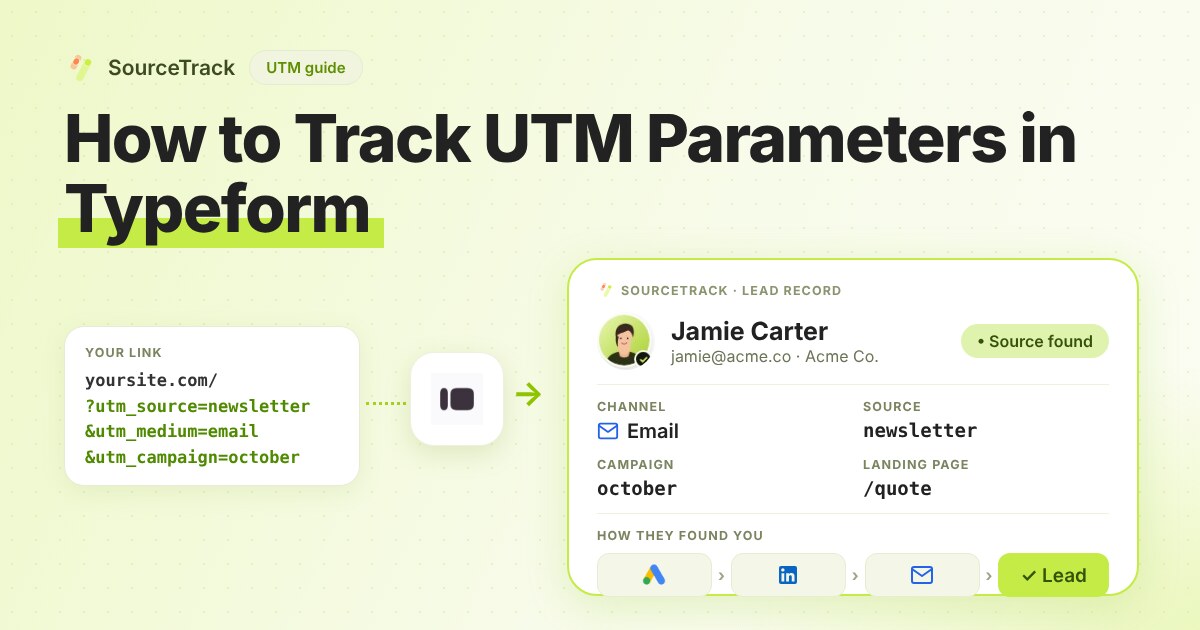
See which campaign sent each Typeform response. Add hidden fields, connect one webhook, then test with a UTM link.
- Author
- SourceTrack Team
- Category
- Track UTM Parameters
- Read Time
- 05 Mins read
- Published Date
Inside the page
- How Typeform handles UTM parameters on its own
- What SourceTrack records for each Typeform response
- Step 1: Add the script tag
- Step 2: Add hidden fields in Typeform
- Step 3: Connect the SourceTrack webhook
- Step 4: Send a test response from a UTM link
- Common problems and fixes
- Further reading
- Frequently asked questions
- Do I need hidden fields in Typeform?
- What happens if the st_aid value is missing?
- Does SourceTrack read ad click IDs from Typeform?
- What if a visitor comes without a UTM link?
- Why did my Typeform test response not show up?
- Next step
You send people to a page with a Typeform on it. A response arrives, and you cannot tell whether the ad, the newsletter or the social post earned it. This guide closes that gap. Typeform usually lives in an embed or on its own page, so it needs a slightly different setup from a plain website form. The setup has three parts: the script on your site, a few hidden fields in Typeform, and one webhook.
How Typeform handles UTM parameters on its own
Typeform can store values from the link, but you have to ask it to. According to the Typeform developer documentation, you declare the values you want in the form, and Typeform reads them from the form link and fills them in when a respondent starts. Typeform’s help center says it has renamed hidden fields to URL parameters, so you may see either name. The same documentation says these values are pre-filled at the start and cannot be changed by answers given during the form.
For embeds, the developer documentation describes two routes. You can pass values straight in with the data-tf-hidden attribute in the embed code. Or you can list parameter names with data-tf-transitive-search-params, and the embed then reads those names from the address of the page that holds it. Only the listed names are forwarded, and anything else is ignored. The same page shows its example with a # rather than a ? in the address, so check the Typeform documentation for the form your embed expects.
That gives you a working route, and it also shows where it falls short:
- Someone has to wire it up. Each field and embed name is set by hand, per form.
- The values must still be in the page address. If a visitor lands on a blog post from an ad and opens your form page two clicks later, the tags are gone from the address and the fields stay empty.
- One value, one moment. A hidden field holds what was in the address when the form loaded, not both first and last touch.
What SourceTrack records for each Typeform response
Because Typeform submits inside its own frame or page, the script on your site cannot watch the send button. SourceTrack instead receives the response from Typeform through a webhook, and uses the visitor id in the hidden field to link it to the visit.
When that link works, the lead shows:
- UTM parameters:
utm_source,utm_medium,utm_campaign, and the others the visit carried. - Referrer and landing page: the site that sent the visitor and the first page they viewed.
- First touch and last touch: both appear in the lead’s timeline.
Two limits are worth knowing. Ad click IDs are not read from webhook forms, so a Typeform response does not carry a gclid or fbclid of its own. And without the visitor id, a response is matched to a visitor only by an email SourceTrack already knows. Otherwise it is an unattributed lead.
Step 1: Add the script tag
Copy your one script tag from SourceTrack. Paste it into the head of the page that shows your Typeform, once. The install guide shows where it goes. When the Typeform is an embed widget, the tracker passes the visitor id and the UTMs into the hidden fields for you, as long as automatic form fill is allowed. It is not allowed when the browser sends Do Not Track or Global Privacy Control, and SourceTrack respects both.
Step 2: Add hidden fields in Typeform
In your Typeform, add a hidden field named st_aid. If you want the campaign saved inside Typeform as well, add utm_source, utm_medium and utm_campaign. The names must match exactly, in lowercase, because a name that differs by one character is a different field. Check the vendor documentation for where they live in the builder today.
Then embed the form as you normally do. If you use a plain link to the Typeform page instead of an embed, the automatic fill does not run, and you would need to add the st_aid value to that link yourself.
Step 3: Connect the SourceTrack webhook
In SourceTrack, open Integrations and find the webhook sources. Under the heading for a form hosted on another site, copy your source address and add /form/typeform to the end. In Typeform, open the Connect panel, choose Webhooks, click Add a webhook and paste the address. The Typeform help center says the address must start with https and that a new webhook starts switched off, so turn it on. Leave signing off, unless you set a secret through Typeform’s API.
Step 4: Send a test response from a UTM link
Open the page with your Typeform using a link like this:
https://yourwebsite.com/apply?utm_source=test&utm_medium=email&utm_campaign=form_test
Open it in a new private window. Fill in the form and send it. Then open SourceTrack and find the new lead. Check that the source, medium and campaign match your test link. If they do, the hidden field and the webhook both work.
Common problems and fixes
- No lead appears. Open the webhook in Typeform and check that it is switched on.
- The lead shows as unattributed. The
st_aidvalue was empty. Check that the field name is exact and that the script is on the page with the embed. If you test with Do Not Track or Global Privacy Control on, the automatic fill is skipped by design. - The campaign is empty but the lead is linked. The visitor id came through, but the tags were not in the address when the form loaded. Open your tagged link directly, not by clicking from another page.
- You used a link, not an embed. Embed the form, or add the visitor id to the link yourself.
- Everything shows as Direct. The visit had no tags and no referring site. Tag the links you control. The troubleshooting guide has more.
Further reading
- Typeform Developers: Embed URL parameters: passing values into an embedded typeform (formerly called hidden fields).
- Google Analytics Help: URL builders, collect campaign data with custom URLs: how UTM parameters are added to destination URLs so Analytics can attribute traffic to campaigns.
- How to track UTM parameters in Tally forms: the same set-up for Tally.
- How to track UTM parameters in HubSpot forms: the same set-up for HubSpot forms.
Frequently asked questions
Do I need hidden fields in Typeform?
Yes, for the best result. Add a hidden field named st_aid and, if you like, utm_source, utm_medium and utm_campaign. Typeform usually runs in an embed or on its own page, so the page script cannot see the submit. The hidden fields and the webhook carry the details across.
What happens if the st_aid value is missing?
SourceTrack can still match the response to a visitor if the email on the form is one it already knows. If not, the response is saved as a lead with no known source, which is shown as unattributed.
Does SourceTrack read ad click IDs from Typeform?
No. Ad click IDs such as gclid or fbclid are not read from webhook forms. The campaign tags and the visitor link come through the hidden fields.
What if a visitor comes without a UTM link?
SourceTrack still looks at where they came from, such as a search engine or another website. If the link has no tags and the visit has no referring site, it shows as Direct. So tag the links you control, like emails, ads and social posts.
Why did my Typeform test response not show up?
The usual causes are a webhook that is switched off, hidden field names that do not match exactly, or a browser that sends Do Not Track or Global Privacy Control, which stops the automatic fill. See the troubleshooting guide for more checks.
Next step
Tag the links you share, then watch the responses come in. Learn the basics in how to track UTM parameters, check your links with the UTM validator, read the install guide or the troubleshooting guide, or see how every tool connects. If you also take bookings, the Calendly guide and the Tally guide cover two close cousins of this setup.
Related Blogs
How to Track UTM Parameters: The Basics
Learn what UTM parameters are, how to build tagged links, and how to see which campaign sent each lead. Plain steps, no code.
SourceTrack Team
Attribution & Growth Engineering
20 Oct, 2026
How to Track UTM Parameters in Cal.com
See which campaign sent each Cal.com booking. Add one script tag to the page with your embed, then test with a UTM link.
SourceTrack Team
Attribution & Growth Engineering
20 Oct, 2026
How to Track UTM Parameters in Calendly
See which campaign sent each Calendly booking. Add one script tag to the page with your embed, then test with a UTM link.
SourceTrack Team
Attribution & Growth Engineering
20 Oct, 2026