How to Track UTM Parameters in Gravity Forms
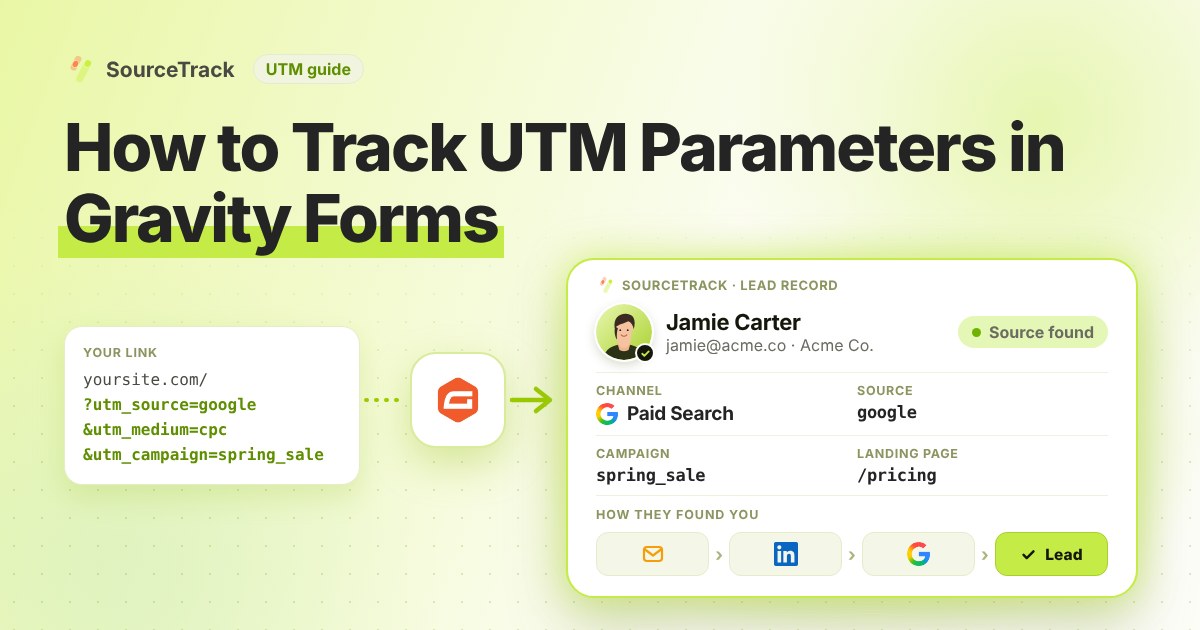
See which campaign sent each Gravity Forms lead. Add one script tag, no hidden fields, then test with a UTM link.
- Author
- SourceTrack Team
- Category
- Track UTM Parameters
- Read Time
- 05 Mins read
- Published Date
Inside the page
- Step 1: Add the script tag
- Step 2: Put your Gravity Forms form on a page
- Step 3: Open a test link with UTMs
- Step 4: Look at the lead in SourceTrack
- How Gravity Forms handles UTM parameters on its own
- What you will see
- What SourceTrack records for each Gravity Forms lead
- Common problems and fixes
- Further reading
- Frequently asked questions
- Do I need hidden fields in Gravity Forms?
- What if a visitor comes without a UTM link?
- Will every form on my site count as a lead?
- What if the visitor browses other pages before they reach the Gravity Forms form?
- Why did my test lead not show up?
- Next step
You run ads, send emails and post on social media. Then a Gravity Forms enquiry lands in your inbox, and you cannot tell which of those brought it in. This guide fixes that. You add one script tag, and SourceTrack links each Gravity Forms lead to the campaign that sent the visitor.
Step 1: Add the script tag
Copy your one script tag from SourceTrack. Paste it into the head of your website, once. The install guide shows where it goes. On WordPress, see the WordPress guide.
Step 2: Put your Gravity Forms form on a page
Show your Gravity Forms form on a page of your site as you normally do. SourceTrack captures a Gravity Forms form that sits directly on your page. Do not add any hidden fields.
Step 3: Open a test link with UTMs
Open your page with UTMs on the end of the link, like this:
https://yourwebsite.com/contact?utm_source=test&utm_medium=email&utm_campaign=form_test
Open it in a new private window. If your browser sends Do Not Track or Global Privacy Control, SourceTrack respects that and will not track the visit. Fill in the form and send it.
Step 4: Look at the lead in SourceTrack
Open SourceTrack and find the new lead. Check that the source, medium and campaign match your test link.
How Gravity Forms handles UTM parameters on its own
Gravity Forms can fill a field from the link. In the Gravity Forms documentation on dynamic population, you tick “Allow Field To Be Populated Dynamically” on the field’s Advanced tab and give the field a Parameter Name. Then a link like /form-url/?your_parameter=value fills any field with that parameter name. To track a campaign this way you add a hidden field for each tag you care about, such as source, medium and campaign, and give each one a parameter name.
That works until it does not. These are the places the manual route fails:
- Page caching. The Gravity Forms documentation says dynamic population cannot be used on cached pages, and warns that some hosts, WP Engine among them, cache query string parameters too. A cached page can show an empty hidden field even though the link had tags.
- The visitor moves to another page. The field is filled from the link of the page that loads the form. If the visitor lands on a blog post from an ad and then clicks through to your contact page, the tags are no longer in the link and the hidden fields stay empty.
- First touch against last touch. A hidden field holds one value from one page view. It cannot tell you both where the visitor first came from and what brought them back last.
- Multi-step forms. The documentation page above does not cover multi-page forms, so check the vendor documentation for how your form behaves.
What you will see
Your test lead shows the source test, the medium email and the campaign form_test. You also see the page the visitor landed on. If you see these, Gravity Forms is tracking UTMs for you.
What SourceTrack records for each Gravity Forms lead
When someone sends a Gravity Forms form on a page that has the script, the lead is linked to the visit that brought them. For each lead you can see:
- UTM parameters:
utm_source,utm_medium,utm_campaign,utm_contentandutm_term. - Ad click IDs:
gclidfor Google Ads,fbclidfor Meta Ads,msclkidfor Bing Ads andli_fat_idfor LinkedIn Ads. - Referrer and landing page: the site that sent the visitor and the first page they viewed.
- First touch and last touch: both appear in the lead’s touchpoint timeline, so you can compare what started the journey with what closed it.
- AI assistant referral: when the visit came from ChatGPT, Claude, Perplexity or Gemini, the lead shows which assistant it was.
The form name and the page address are saved with the lead as well. All of this comes from the visit, not from the form, so none of it needs a field in Gravity Forms.
Common problems and fixes
Most missing leads come down to a short list of causes. Work through them in order.
- Nothing shows up at all. View the page source and check that the script tag sits inside the
<head>. Then open your browser’s developer tools, choose Network, filter bytrackand reload. A successful request means the script is running. The install guide shows where the tag goes, and the WordPress guide covers header plugins. - Do Not Track or Global Privacy Control is on. SourceTrack respects both. If your browser or an extension sends either signal, the tracker does not run, and your test visit will not appear. Test in a browser without them, or turn the setting off for the test.
- Caching or minify. After you paste the tag, clear your site cache. If a cache plugin bundles JavaScript, exclude
tracker.min.jsfrom minification and defer lists, then look for errors in the browser console. - The form is inside an iframe. A form in an iframe submits in its own frame, which the page script does not see. SourceTrack captures forms that sit directly on your page.
- The test looks wrong. Open your tagged link in a new private window, not a tab you used before, and open it directly rather than clicking through from another page on your site. The link needs the tags the first time the visitor arrives.
- Everything shows as Direct. The visit had no tags and no referring site. Tag the links you control. The troubleshooting guide explains why a visit can arrive without a referrer.
Further reading
- How to track UTM parameters in Fluent Forms: the same set-up for Fluent Forms.
- How to track UTM parameters in Typeform: the same set-up for Typeform.
Frequently asked questions
Do I need hidden fields in Gravity Forms?
No. Once the script is on your site, SourceTrack captures Gravity Forms forms that sit on your page. You do not change the form.
What if a visitor comes without a UTM link?
SourceTrack still looks at where they came from, such as a search engine or another website. If the link has no tags and the visit has no referring site, it shows as Direct. So tag the links you control, like emails, ads and social posts.
Will every form on my site count as a lead?
No. A form counts as a lead when its name or web address, or the page address, has words like contact, demo or quote. Forms that look like login, password, reset or search forms do not count.
What if the visitor browses other pages before they reach the Gravity Forms form?
The lead is still linked to the visit that brought them to your site, because SourceTrack reads the visit and not the page the form is on. The lead shows the first touch and the last touch, so the original ad or email is not lost when someone clicks from a landing page to your contact page.
Why did my test lead not show up?
First, check that the script tag is on the page with the form. Second, try a private window that does not send Do Not Track or Global Privacy Control, because SourceTrack respects both. Then see the troubleshooting guide.
Next step
Tag the links you share, then watch the leads come in. Learn the basics in how to track UTM parameters, read the install guide or the troubleshooting guide, or see how every tool connects.
Related Blogs
How to Track UTM Parameters: The Basics
Learn what UTM parameters are, how to build tagged links, and how to see which campaign sent each lead. Plain steps, no code.
SourceTrack Team
Attribution & Growth Engineering
20 Oct, 2026
How to Track UTM Parameters in Cal.com
See which campaign sent each Cal.com booking. Add one script tag to the page with your embed, then test with a UTM link.
SourceTrack Team
Attribution & Growth Engineering
20 Oct, 2026
How to Track UTM Parameters in Calendly
See which campaign sent each Calendly booking. Add one script tag to the page with your embed, then test with a UTM link.
SourceTrack Team
Attribution & Growth Engineering
20 Oct, 2026