How to Track UTM Parameters in Jotform
See which campaign sent each Jotform lead. Add one script tag, connect Jotform with one link, then test with a UTM link.
- Author
- SourceTrack Team
- Category
- Track UTM Parameters
- Read Time
- 05 Mins read
- Published Date
Inside the page
- Step 1: Add the script tag
- Step 2: Copy your SourceTrack link
- Step 3: Paste the link into Jotform
- Step 4: Test with a UTM link
- How Jotform handles UTM parameters on its own
- What SourceTrack records for each Jotform lead
- What you will see
- Good to know
- Common problems and fixes
- Further reading
- Frequently asked questions
- Why does Jotform need a link?
- Do I need hidden fields in Jotform?
- What if a visitor comes without a UTM link?
- Why does my Jotform lead show no source?
- Does the campaign survive if the visitor reads other pages before the form?
- Next step
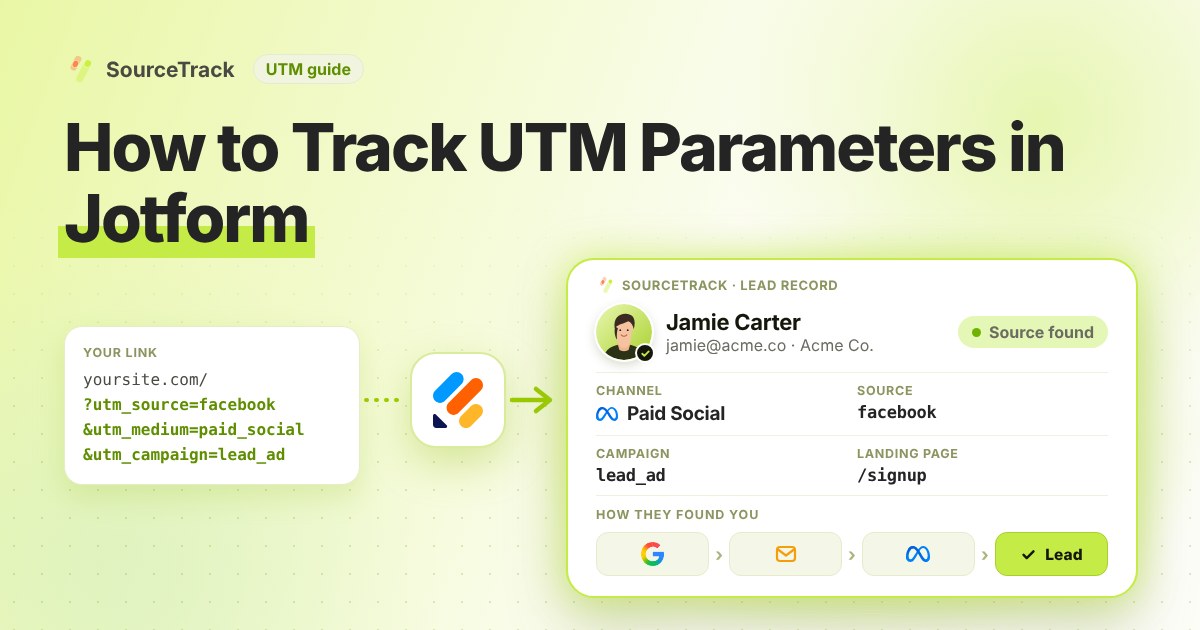
Jotform forms usually appear inside your page as a box that belongs to Jotform. The SourceTrack script cannot look inside that box. So Jotform works a little differently. You connect it once from its settings with one copied link, and each submission is sent to SourceTrack.
Step 1: Add the script tag
Copy your one script tag from SourceTrack. Paste it into the head of your website, once. The install guide shows where it goes. On WordPress, see the WordPress guide.
Step 2: Copy your SourceTrack link
In SourceTrack, open Integrations, then Webhook sources. Add a source and copy the link it gives you.
Step 3: Paste the link into Jotform
In Jotform, open your form and go to its settings. Find Integrations, then Webhooks, and paste the link there. Make sure the form asks for an email address.
Step 4: Test with a UTM link
Open the page that holds your form with a link like this:
https://yourwebsite.com/contact?utm_source=test&utm_medium=email&utm_campaign=form_test
Open it in a new private window. If your browser sends Do Not Track or Global Privacy Control, SourceTrack respects that and will not track the visit. Fill in the form and send it. Then open SourceTrack and find the new conversion.
How Jotform handles UTM parameters on its own
Jotform can fill a field from the address of the form. Its help page on prefilling says you add a query string where each key is the field’s unique name and each value is the text to prefill, joined with &. Hidden fields work the same way: you add them by their unique names. Jotform points you to its Prepopulate app, at prepopulate.jotform.io, to generate the address. So the manual route is a hidden field for each of utm_source, utm_medium and utm_campaign, then an address that carries the values.
That is where it gets fragile:
- The embed is the weak point. Jotform’s help says prefilling also works on embedded forms. Jotform’s support answers disagree on how the values get from your page into the frame. Some say the values must be written into the
srcof the iframe by hand. Others say parameters on the page address are passed on, and one points to the script embed instead. Check the Jotform documentation for the embed type you use, and test it, because a frame that does not receive the tags submits a form with empty hidden fields. - The tags are lost after the first page. The values live in an address. If a visitor lands on your homepage from a tagged ad and then opens your contact page, the second address has no tags.
- Last touch, or a typed-over value. A prefilled value is only what the address said when the form loaded. Visitors who return from another link overwrite the first source in your hidden fields.
- Caching. A cached page can be served without the values your setup expects. Check the documentation of your cache plugin or host.
SourceTrack records the visit on your own site, so none of this depends on the address of the form.
What SourceTrack records for each Jotform lead
A Jotform form shown inside your page is a box from another company, so the SourceTrack script cannot see the form being sent. That is why this guide uses a webhook. Jotform sends each submission to the link you copied from Webhook sources, and SourceTrack records it as a conversion.
Be clear about what that link is. SourceTrack has ready-made hosted-form webhooks for Tally, Paperform, QuestionScout and Typeform. Jotform is not on that list, so it connects through the general webhook source from the steps above. What links a submission to a visit is the email address, or a visitor id. With one of them, the conversion can carry the source, medium and campaign of the visit. Without either, the submission may not be linked to where the visitor came from. The visitor’s UTM tags are not read out of Jotform, so the campaign comes from the visit itself.
What you will see
Each form sent through your link is recorded as a conversion. Include the visitor’s email in what Jotform sends, so SourceTrack has a way to link the form to the visit. A good test shows the campaign form_test on the new conversion.
Good to know
The email matters. Without an email, or a visitor id, a submission may not be linked to where the visitor came from. Jotform menus can change, so look for the Webhooks option under your form integrations if the names look different.
Common problems and fixes
Nothing arrives in SourceTrack. Confirm the webhook link was saved in Jotform, and that you sent a real test submission after saving it. Jotform menus can change, so look for the Webhooks option under your form integrations if the names look different.
The conversion has no source. Check that the form asks for an email address and that you typed one in the test. Then check that the script tag sits in the head of every page of your site, not only the page with the form. The install guide shows where it goes.
Your own test was not tracked. SourceTrack honours Do Not Track and Global Privacy Control. If your browser sends either signal, the visit is not tracked. Consent settings on your own site can also hold tracking back until the visitor agrees. Test in a new private window without those signals and with the full UTM link.
For other symptoms, the troubleshooting guide lists a check for each.
Further reading
- Jotform Help: Prepopulating form fields via URL parameters: prefilling fields, including hidden fields, from URL parameters, also on embedded forms.
- Google Analytics Help: URL builders, collect campaign data with custom URLs: how UTM parameters are added to destination URLs so Analytics can attribute traffic to campaigns.
- How to track UTM parameters in Typeform: the same set-up for Typeform.
- How to track UTM parameters in HubSpot forms: the same set-up for HubSpot forms.
Frequently asked questions
Why does Jotform need a link?
A Jotform form shown inside your page is a box from another company. The SourceTrack script cannot see into it. The copied link lets Jotform tell SourceTrack when someone sends the form.
Do I need hidden fields in Jotform?
No. You do not add hidden fields for this. You do need a field for the email address, so SourceTrack can link the lead to the visit.
What if a visitor comes without a UTM link?
SourceTrack still looks at where they came from, such as a search engine or another website. If the link has no tags and the visit has no referring site, it shows as Direct. So tag the links you control, like emails, ads and social posts.
Why does my Jotform lead show no source?
The usual causes are a missing email field, the script missing from the head of the page, Do Not Track or Global Privacy Control in your browser, or a webhook link that was not saved in Jotform. Test again in a new private window with a UTM link.
Does the campaign survive if the visitor reads other pages before the form?
Yes. The visit is recorded when the visitor lands on your site. If someone arrives on a blog post from a tagged link and fills in your Jotform two pages later, the submission can be linked to that first visit through the email address.
Next step
Tag the links you share and watch the leads come in. Learn the basics in how to track UTM parameters, check the install guide, or see how every tool connects.
Related Blogs
How to Track UTM Parameters: The Basics
Learn what UTM parameters are, how to build tagged links, and how to see which campaign sent each lead. Plain steps, no code.
SourceTrack Team
Attribution & Growth Engineering
20 Oct, 2026
How to Track UTM Parameters in Cal.com
See which campaign sent each Cal.com booking. Add one script tag to the page with your embed, then test with a UTM link.
SourceTrack Team
Attribution & Growth Engineering
20 Oct, 2026
How to Track UTM Parameters in Calendly
See which campaign sent each Calendly booking. Add one script tag to the page with your embed, then test with a UTM link.
SourceTrack Team
Attribution & Growth Engineering
20 Oct, 2026